Call transcriptions and Automated QA
Concepts
QueueMetrics can automatically transcribe the phone calls handled by your Contact Center and, optionally, automatically evaluate them for quality. When an interaction is already text-based to begin with — for example a chat or a WhatsApp conversation — there is nothing to transcribe: the conversation itself can be shown in the interaction detail and automatically evaluated in the same way.
To transcribe calls, QueueMetrics relies on transcription servers, which can be either remote (a third-party software-as-a-service) or local to your own infrastructure. This lets you handle cases where sending call data outside of your organization is not acceptable — for example for banks or healthcare providers — by using a locally-installed transcription server instead of a remote service.
The life-cycle of a call
A call starts its life as a recording on disk. Uniloader constantly monitors the recording files that appear on disk and, as soon as the PBX stops writing to one of them, queues it for transcription.
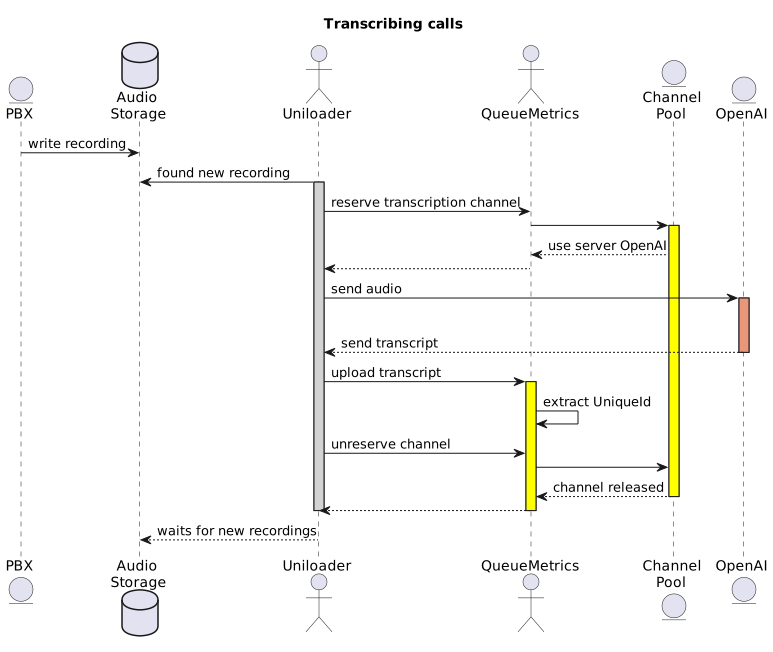
To have a call transcribed, Uniloader asks the QueueMetrics server whether a transcription server is currently available. QueueMetrics keeps track of how many transcriptions are running in parallel on each configured server, and looks for one that still has a free channel. As soon as one is found, Uniloader sends the audio file to that server, downloads the resulting transcription, converts it to the format QueueMetrics expects and uploads it.
Setting up the server pool
Both third-party transcription services and, even more so, locally-installed transcription servers share the same limitation: they can usually only process a limited number of calls at the same time. This is why QueueMetrics manages transcription capacity centrally, instead of leaving every single Uniloader instance to guess which server is actually available. The QueueMetrics server manages a pool of transcription servers, each with its own capacity, that can be used according to different rules. Servers can be added to or removed from the pool at any time, without interrupting the transcription process.
This means QueueMetrics can work not only with the best-known transcription services (which are convenient, as you only need to buy some credits and enter an access token) but also with locally-installed servers, for customers who cannot or do not want to send the content of their calls outside of their own infrastructure.
Each server, whether a SaaS contract or a local installation, only offers a limited number of channels: the maximum number of calls it can process in parallel. Whenever QueueMetrics needs to perform a transcription, or an AI-assisted quality evaluation (see Automating Quality Assessment), it borrows a free channel from the pool and returns it once the operation is complete. The same pool of servers and channels is shared by both transcription and AI grading. If no channel is free at that moment, the request simply waits until one becomes available.
For each transcription server in the pool, you can configure:
-
Name: a name to identify the server
-
Driver: which kind of transcription engine/service this server is
-
URL: the address QueueMetrics should contact
-
Token: the access credential for that service, if required
-
Priority: used to decide which server to prefer when more than one has a free channel
-
Main Tag: which kind of work this server is willing to accept
-
Extra Tags: Any additional tags that Uniloader uses to tag this server, comma-separated.
-
Max Channels: how many operations this server can run in parallel
-
Description: a free-text description
-
Parameters: further, driver-specific configuration
Once saved, a server also shows its current Status, whether it is currently seen as Healthy, and the time of its Last Health Check — all reported automatically by QueueMetrics and not editable.
Tags decide which kind of work can be routed to a server. The tags currently known to QueueMetrics are:
-
TD: transcription with diarization, i.e. also recognizing who is speaking
-
TR: plain transcription of a recording. If a diarization model is not available (e.g. for some local models) or is too expensive to run, you can get the same result cheaply by using a stereo recording of the call. In this case, Uniloader will first separate the two channels, transcribe each separately, and then reconstruct the call flow based on timings.
-
QA: AI-assisted QA evaluation of a call, using an LLM
All of a server’s settings, including its status, priority and tags, can be changed at any time while the server is in use, without interrupting the transcriptions or evaluations already running on it - the new settings simply apply to the next operation that needs a server. This also means you can have several servers configured with different priorities for the same kind of work. For example, you could prefer your local server for plain transcriptions and only fall back to a SaaS service when there’s a problem or too many calls to handle locally: to do so, you would pause the local server and resume the SaaS one, or the other way around, as needed.
When QueueMetrics looks for a server to handle a given operation, it considers every active, healthy server that carries the required tag and still has a free channel, and picks the one with the lowest priority number first; if there is more than one server at that same priority, it prefers the one that currently has the most free channels.
Monitoring
From the server pool configuration page, "Go to live view" opens a live status page listing every configured transcription server, showing its name, driver, current status (active or paused) and how many of its channels are currently in use out of the maximum. From here, a server can be paused or resumed - for example to take it offline for maintenance - and its recent activity can be reviewed.
For each server, the list of transcription channels currently in use shows the agent whose call is being transcribed, the media file involved, the channel’s state, the number of tokens consumed so far, and when the channel was reserved and last seen active.
Transcribing calls, in practice
Once a call has been transcribed, the conversation is immediately visible in the call detail, right below the audio recording. Clicking on a transcribed sentence jumps the audio player to that point of the call, so you can listen to it. If a transcription is not perfect, it can be edited.
Extracting a call’s Unique-Id from the recording name
When a transcription is uploaded, QueueMetrics needs to know which call it belongs to. To do this, it derives the call’s Unique-Id from the name of the media file being transcribed; this unique-id is what is later used to match the transcription back to its call, which in turn is what makes it possible to run automated QA evaluation on it (see Automating Quality Assessment) - without it, a transcription cannot be linked to a call for automated grading purposes.
This is controlled by the system property llm.captureUniqueId, which holds a regular expression applied to the
media file name: whatever text matches the (first populated) capture group becomes the call’s unique-id. The
regular expression can contain more than one capture group - for example to match several different file naming
conventions with a single pattern - whichever group actually matches for a given file is the one used. If this
property is left empty (the default), no unique-id is captured from the file name.
The exact filename format depends on which PBX generated the recording, so the regular expression needs to be adapted accordingly. A few examples:
| PBX | Sample filename | Regexp | Notes |
|---|---|---|---|
Freepbx |
|
|
Captures everything from the last dash to the last dot ( |
FusionPBX |
|
|
The whole file name is the unique-id (a UUID); captures everything up to the last dot, regardless of the file extension. |
| If the regexp contains multiple capture groups, the first that matches will contain the Unique-Id. |
I forgot to capture the Unique-Id. What now?
If you forgot to capture the Unique-Id for a set of transcribed calls, or the regular expression you used to capture it was incorrect, those calls will not be available for automated QA analysis.
If you do not use automated QA, there is nothing else you need to do.
If you want those calls to be available for automated QA, as described in Automating Quality Assessment, you need to transcribe them again. Once they are re-transcribed, the calls are uploaded to QueueMetrics again and their Unique-Id is captured correctly. To do so:
-
Correct the
llm.captureUniqueIdproperty, if needed, so that it captures the Unique-Id properly. -
Delete the existing transcription of each affected call, by visualizing it and selecting Delete Chat from the chat settings (gear icon), as described in Deleting a Chat.
-
Restart the transcription service with
service uniloader-transcribe restart. The check for missing transcriptions is performed only at startup, so the calls will not be queued for transcription until the service is restarted.
| If this happens often, we suggest scheduling a daily restart of the service, so that any calls whose transcriptions were deleted during the previous day are picked up and transcribed again. |
Setting up QueueMetrics for transcriptions
First, make sure that you have the latest Uniloader installed, and that the uniloader-transcriber service is
running on the PBX server (or wherever the audio recordings are).
Log in to QueueMetrics, go to Users, and find the user called "transcriber"; enable it and set a password. This account will be used to send transcriptions.
If you are starting from an older QueueMetrics install, just create a user called "transcriber", in class
ROBOTS, with the custom key CHAT_WRITE.
|
Edit the transcriber’s configuration file at /etc/defaults/uniloader-transcribe, and set:
# Base URL of the QueueMetrics instance
QM_URL=http://127.0.0.1:8080/queuemetrics/

# QueueMetrics login
QM_LOGIN=transcriber

# QueueMetrics password
QM_PASSWORD=.....

# Directory to watch for audio files
WATCH_DIR=/var/spool/asterisk/monitor/
then restart the service with service uniloader-transcribe restart.
Take a look at how the recordings are named in the WATCH_DIR: you need to be able to extract the call’s
unique-id from the rest of the file name. For example, if your recordings are named audio-134.567.wav, you
would keep everything between the last dash and the extension. To do this, set these properties in QM
(Configuration → Edit system parameters):
llm.captureUniqueId=^.+?-(.+).wav
llm.verbose=true
Next, go to Configuration → Transcription Servers and create a transcription server. Here we use the common Deepgram service as an example:
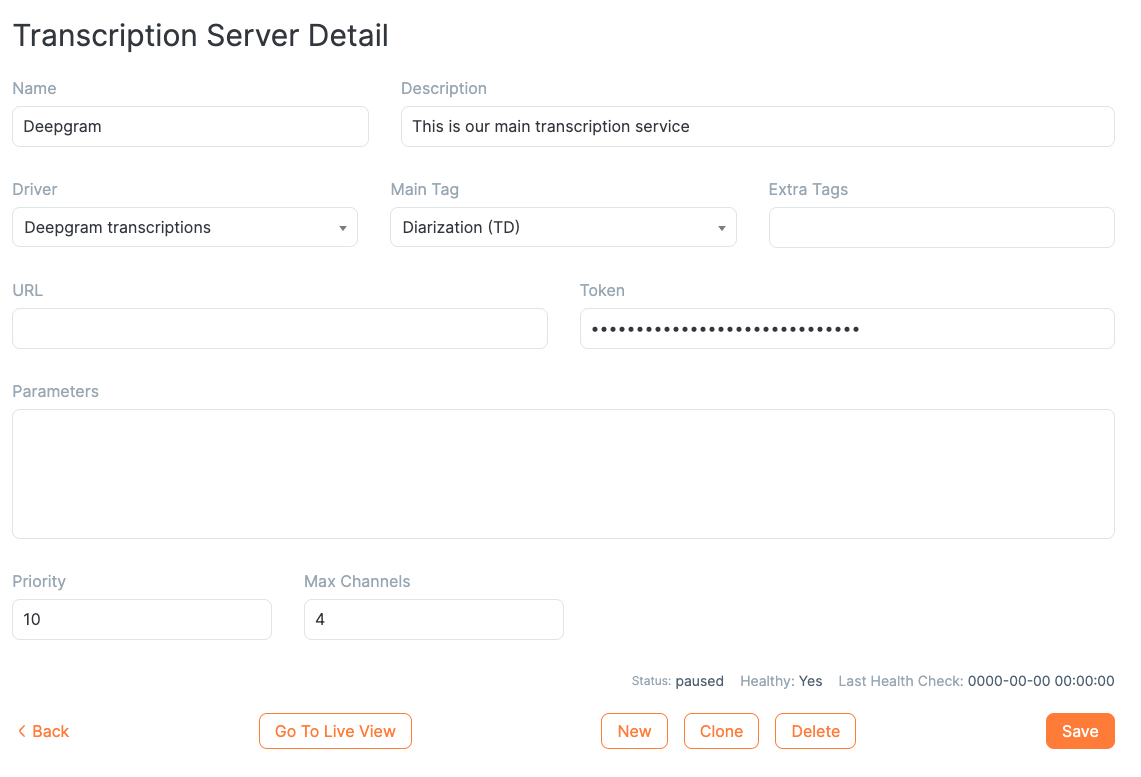
Enter any name you like, and select the driver "Deepgram transcriptions". Enter your API key, and set the main tag for this server to "TD" (Transcription and Diarization) - this is essential, as it is how the transcriber finds the server. You can also choose the number of parallel channels, depending on your contract.
Within a few seconds, the transcription server should start pushing transcriptions to QM. To check that it is working, click "Go to Live view" (or go to the home page and add the "Live transcriptions" box):
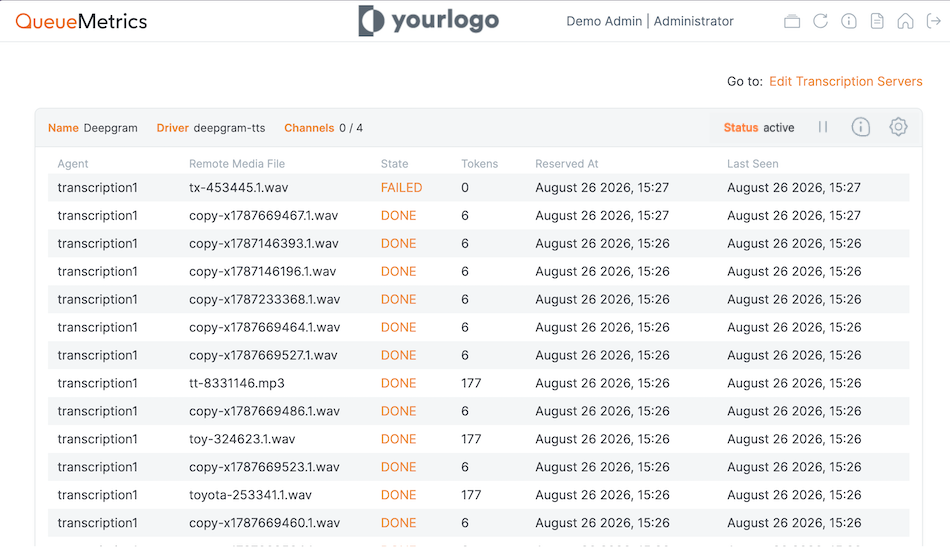
This shows all transcriptions currently in progress or just completed (in the last 5 minutes). You can freely stop and restart servers, and change their parameters and relative weight by clicking its Cog icon; the system reacts immediately. You can also see the detail of every transcription attempt handled by a server by clicking its Info icon:
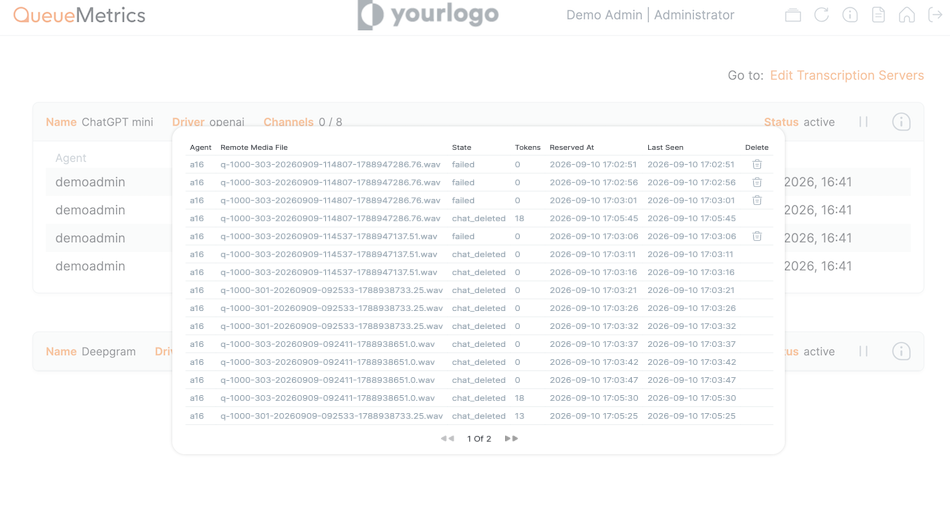
From here you will also be able to delete a transcription channel if its status is in a terminal failed state (SKIPPED, FAILED, TIMEOUT), by clicking the trash icon if present. This will set the status to CHAT_DELETED for all attempted transcriptions of that specific recording, which tells Uniloader to retry the transcription. If the deletion is successful, the deleted channels will appear in the recent transcriptions job.
At this point, if you look up one of the calls that was just transcribed in a report and open its call detail
→ QA form, you will see the call transcribed and diarized. Clicking on a transcribed phrase plays back the
matching audio at roughly the right moment. If a transcription is incorrect and you have the CHAT_EDIT
security key, you can correct it.
By editing the settings in Uniloader, you can have finer control on how calls are transcribed; for example, you can control how many worker threads will be used for transcribing calls (flag workers), whether you want implicit diarization using a stereo recording (stereo-agent, remember to enable it in Asterisk though the option x of MixMonitor) and even the percentage of calls that you don’t want to transcribe (skip-prc).
|
Automating Quality Assessment
Once a call has been transcribed - or is a chat/WhatsApp-type interaction that was naturally text-based to begin with - it can be automatically evaluated.
This automated evaluation uses the very same quality assessment tools already available in QueueMetrics, so you can see evaluations made by human graders alongside evaluations made by the AI.
The idea is that the two approaches work together: automated evaluation is used to flag potentially problematic situations, which are then reviewed by a human grader. This way, review effort is concentrated only where it actually brings a benefit, avoiding unnecessary work.
Just as with human grading, QueueMetrics lets you avoid evaluating every single call, and instead pick calls for evaluation based on who answered them and what their outcome was. For example, you might want to review all calls marked as a sale, plus a further 20% of the remaining ones. At the same time, you might want to evaluate 50% of the calls answered by newly-hired agents, but only 20% of those answered by more experienced agents. QueueMetrics finds the smallest possible set of calls that satisfies all of these criteria at the same time, so that you get the best possible result for the lowest cost.
| A complete description of how the page criteria work can be found at the Grader’s Page. |
Automated evaluation works much like manual grading: a supervisor goes to the Grader page, sets the evaluation criteria and which calls should be selected, and presses the "AI Grading" button. Calls are then loaded, one after another, onto the page in front of them, and evaluated in real time by the configured AI models.
Evaluating calls requires a QA form to be filled in; this form can carry general instructions describing the overall evaluation criteria, and each individual question in the form can in turn carry its own, more specific instructions on what that particular question should look for.
| The QA form used for AI Grading must have its "AI prompt" configured (in the form’s own configuration page); AI Grading cannot run on a form that has no "AI prompt" set, or that is locked. See Configuring QA forms. |
As this process moves forward, forms are filled in and become available in the call detail, just like manually graded ones. The AI can leave comments tied to each call and to each question of the form, explaining why it gave a particular evaluation. Forms filled in by the AI are always clearly distinguishable from the others in quality reporting.
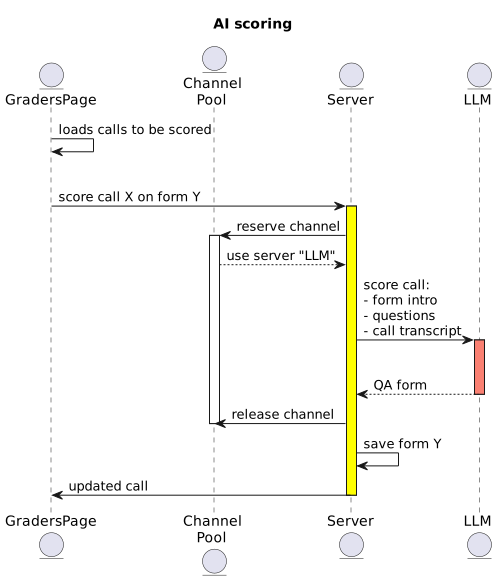
It is possible to simply leave the AI Grading page open: it will keep loading and evaluating calls on its own until there are no more calls left that match the requested criteria. If, for any reason, you want to interrupt the activity - to run a different search, or simply because enough data has been gathered - this can be done at any time, by navigating back or to a different page.
Automated QA in practice
To start, you need to create at least one LLM server to do the evaluation. This is very similar to what you did above when setting up transcriptions. Go to Configuration → Transcription Servers, and create a transcription server for ChatGPT:
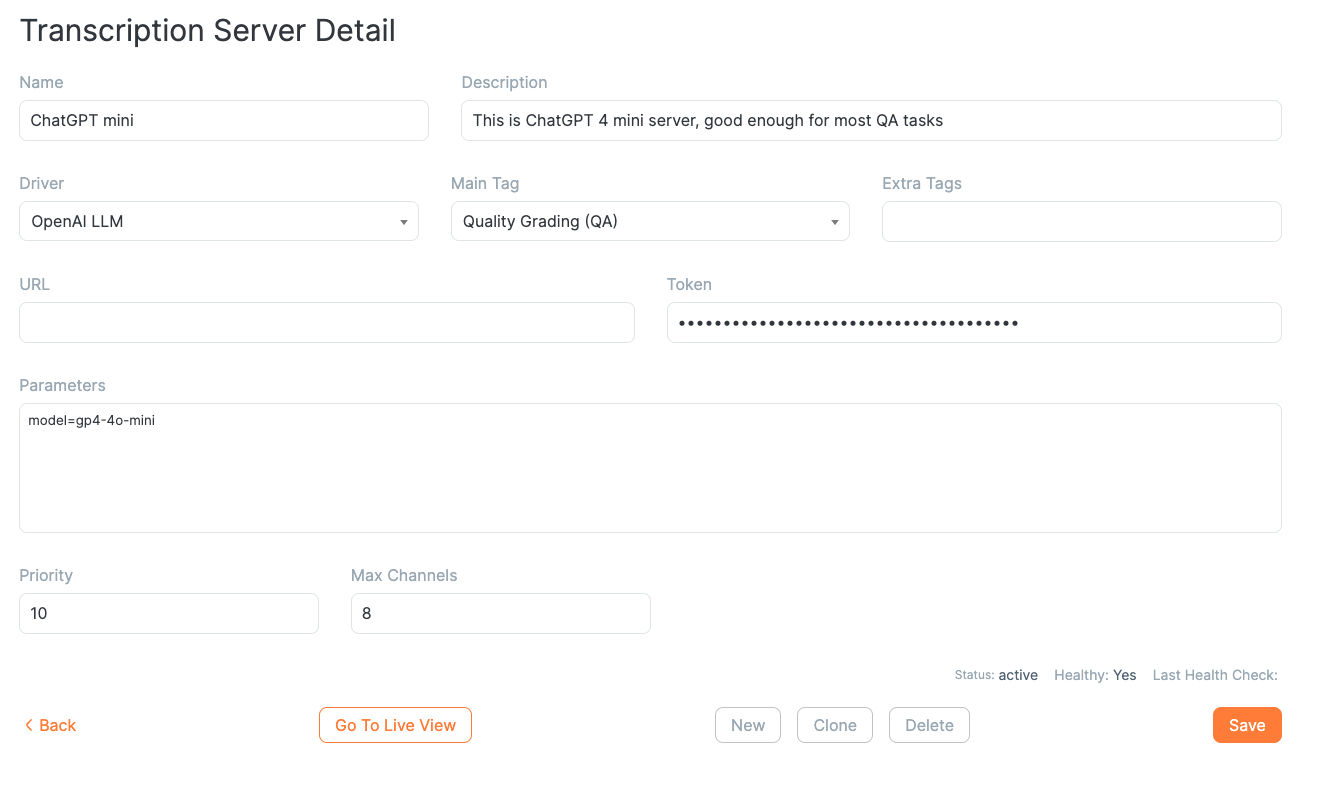
Select the driver "OpenAI LLM", and make sure you enter your API key and the model you want to use. Most LLMs expose a large set of configurable parameters, but this should be enough to get you started.
Now go to the Home page and add the "QA reports" block; from there, click on the Grader’s Page. For Automated QA to work, the QA form must include a prompt telling the LLM what you expect, and it helps if every QA item also has an explanation of what that question means. We supply a "Sample AI inbound" QA form to get you started: select it and click "AI Grading".
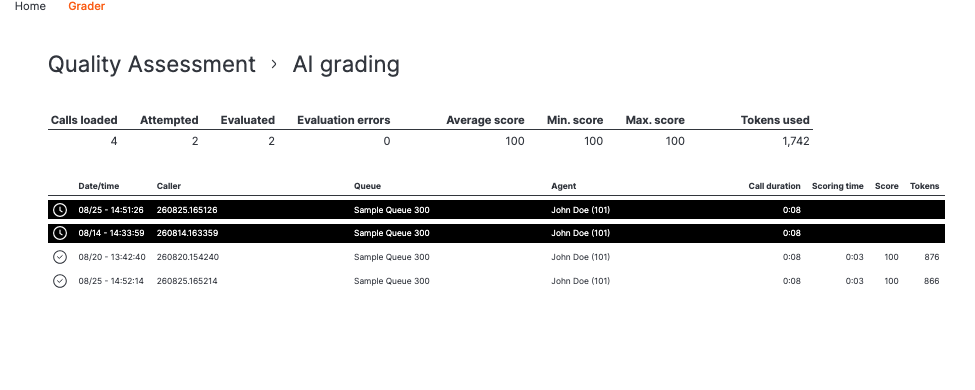
The page starts empty and progressively loads calls; as each call is scored, it changes colour and the statistics are updated. This continues until you navigate away from the page, or until there are no more calls matching the requested criteria, at which point a "No more calls" line is displayed.
Calls change colour and icon depending on their state:
| Call status | Background |
|---|---|
Still to be scored |
White |
Being checked |
Brown |
QA ongoing |
Black |
In error, retrying |
Light red |
In error, failed 3 times |
Red |
If you then look up one of these calls, you will find the QA evaluation loaded on its QA form. Note that the "Grader" section of the QA form shows "AI" to distinguish these forms from the ones evaluated by humans.
| Once a call is scored, the generated QA form can be reviewed immediately by clicking on the pencil icon that appears on the right. |
Troubleshooting automated QA
How do you make sure the script and the descriptions you provide work well with the LLM model of your choice? From the QA form editor, just below the script, click "Test AI dialog".
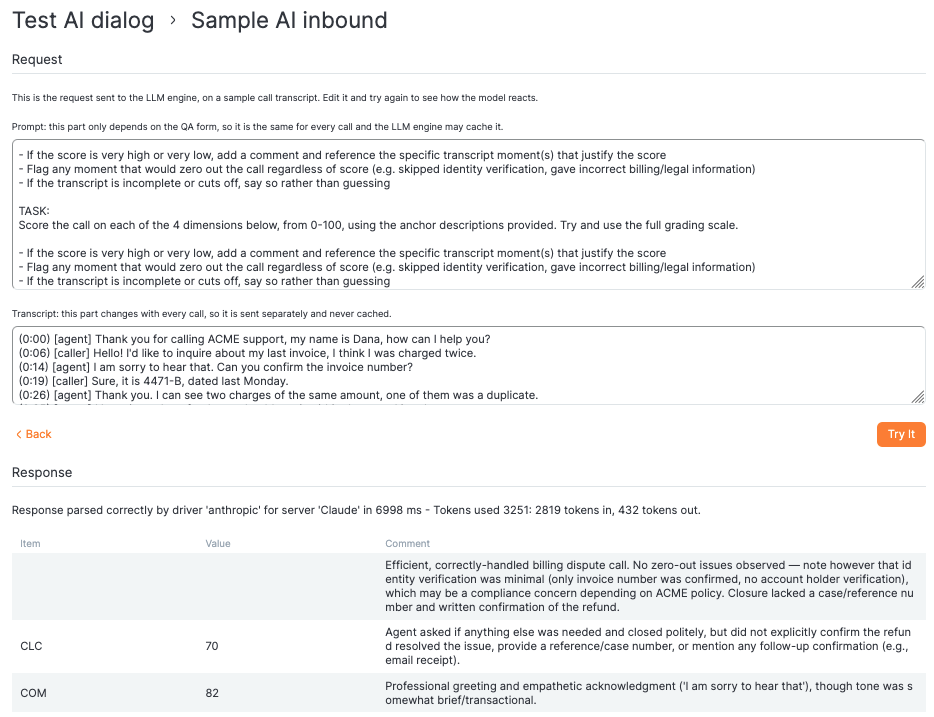
This opens a page showing the complete prompt that will be sent to the LLM, made up of:
-
Your AI prompt
-
The list of questions, their meaning, and their allowed values
-
The different quality levels
-
A sample call
You can edit this prompt until you are satisfied with it; clicking Run sends it to the currently configured LLM (tag "QA") and prints the result, both as interpreted by QM and, below it, as a raw JSON response.
| You should replace the sample call with one or more real transcripts, to test how they are actually evaluated. For your convenience, the call transcription itself is input in a separate text area. |
Once you are happy with the updated prompt, note down the changes you made and apply them to the script and the questions in their respective editors.
Transcription drivers
For a transcription driver to work, it must be supported both by QueueMetrics and by Uniloader: QueueMetrics needs to know the driver in order to let you configure a server that uses it (see Setting up the server pool), while Uniloader is the component that actually sends the audio and retrieves the transcription from that service. A driver that is only known to one of the two will not work.
Transcription servers support two kinds of work (see Setting up the server pool for the TR and TD tags): plain transcription (TR), and transcription with diarization (TD), i.e. also recognizing who is speaking.
OpenAI
-
Driver:
openai-tts(OpenAI transcriptions) -
Token: your OpenAI API key (required)
-
URL: fixed - this driver always talks to the official OpenAI API, so the URL field can be left empty
-
Supports both TR and TD
-
Parameters: defaults to
model=base,response_format=verbose_json,timestamp_granularities[]=segment. Any other key can be added to override these or supply further ones - for example, to force a specific model (model=gpt-4o-transcribe,model=gpt-4o-transcribe-diarize,model=whisper-1, …) or to switch to the newer, flatresponse_format=diarized_jsonformat. -
Since this is the official OpenAI API, QueueMetrics also reports the number of tokens used by each transcription.
-
Max Channels: OpenAI does not publish a simple "concurrent calls" number for its transcription models - instead, it enforces a requests-per-minute limit that scales with a usage tier based on your account’s cumulative spending, going from a handful of requests per minute on entry-level tiers up to several hundred (or more) on higher ones. As a rule of thumb, set Max Channels comfortably below the requests-per-minute limit shown for your account, and re-check it from time to time, as both your tier and OpenAI’s own limits can change.
Example parameters for diarization (tag TD):
model=gpt-4o-transcribe-diarize
response_format=diarized_json
chunking_strategy=auto
Example parameters for transcription only (tag TR):
model=whisper-1
response_format=verbose_json
timestamp_granularities[]=segment
OpenAI-compatible API
-
Driver:
openai-api-tts(OpenAI-compatible transcriptions) -
URL: required - point it at your own OpenAI-compatible transcription endpoint (for example a self-hosted Whisper server, or a third-party service exposing an OpenAI-compatible API)
-
Token: as required by that particular service
-
Behaves exactly like the OpenAI driver above - same Parameters, same support for TR/TD - just against whatever endpoint you configure.
-
Since this is not the official OpenAI API, no token usage is reported for this driver.
A number of open-source, self-hostable projects expose an API compatible with OpenAI’s transcription endpoint and can be used with this driver, for example:
-
WhisperX API server: https://github.com/Nyralei/whisperx-api-server
-
Speaches (formerly faster-whisper-server): https://github.com/speaches-ai/speaches
-
openedai-whisper: https://github.com/matatonic/openedai-whisper
-
docker-whisper: https://github.com/hwdsl2/docker-whisper
| This list is not an endorsement of any specific project; verify licensing, support and diarization capabilities before choosing one for production use. |
Max Channels here is not bound by a vendor’s contract, but by the actual capacity of the server you deployed: how many transcriptions it can run at once depends on its own hardware (CPU/GPU) and configuration, so set Max Channels to match what that specific installation can sustain, not an arbitrary number.
Example parameters for diarization for WhisperX Api Server (tag TD):
model=base
response_format=verbose_json
timestamp_granularities[]=segment
language=en
align=true
diarize=true
min_speakers=2
max_speakers=2
Example parameters for stereo transcription for WhisperX Api Server (tag TR) - make sure that your Uniloader has parameters --task-tags TR --stereo-agent R (transcription only, agent speaks on the right channel):
model=base
response_format=verbose_json
timestamp_granularities[]=segment
language=en
align=true
Deepgram
-
Driver:
deepgram-tts(Deepgram transcriptions) -
Token: your Deepgram API key (required)
-
URL: fixed - this driver always talks to the official Deepgram API, so the URL field can be left empty
-
Supports both TR and TD - diarization is enabled by selecting a diarization model, rather than a simple on/off switch
-
Parameters: defaults to
language=en,paragraphs=true. Any other key can be added to override these or supply further ones - for example to pick a differentmodel(e.g.nova-2), a differentlanguage, or a specific diarization model. -
Deepgram has no concept of tokens: QueueMetrics instead reports the (rounded) duration of the audio, in seconds, in place of a token count, for billing/telemetry purposes.
-
Max Channels: Deepgram publishes explicit concurrency limits per plan - at the time of writing, its Pay-As-You-Go plan allows up to 100 concurrent transcription requests over its REST API, with Growth and Enterprise plans allowing several times that. Pay-As-You-Go and Growth limits cannot be raised without moving to a different plan, so Max Channels should not be set above what your plan actually allows.
Example parameters for diarization (tag TD):
language=en
paragraphs=true
diarize_model=latest
Example parameters for transcription (tag TR):
language=en
paragraphs=true
smart_format=true
KrokoAI
-
Driver:
krokoai-tts(KrokoAI transcriptions) -
URL: required - point it at your KrokoAI transcription endpoint. The URL is a websocket, so it could be something like
ws://my.kroko.server:8080 -
Token: not needed
-
Parameters: not needed
-
Supports TR only - no diarization
-
Duration-based: QueueMetrics reports the (rounded) duration of the audio, in seconds, in place of a token count, for billing/telemetry purposes.
LLM drivers
The LLM models used for Automating Quality Assessment are configured the same way as transcription servers (see Setting up the server pool): add a server tagged QA, using the driver for the LLM provider you want to use, an API access token, and the model-specific parameters described below. If URL is left empty, QueueMetrics uses the provider’s default endpoint.
Unlike the transcription drivers described above, LLM drivers do not depend on Uniloader at all: the AI grading evaluation is performed entirely by the QueueMetrics server, which talks to the LLM provider directly. This means a new LLM driver can be made available to QueueMetrics without needing a matching Uniloader update.
| AI models and providers evolve very quickly. The information below (default models, endpoints and parameters) may not be up to date by the time you read it - please double check with the provider’s own current documentation, or with QueueMetrics support, before relying on it. |
OpenAI
-
Token: your OpenAI API key
-
Default URL (used when left empty):
https://api.openai.com/v1/chat/completions -
Parameters:
-
model: the OpenAI model to use. This is mandatory - there is no default. The model must be from the "4o" family or later, as older models cannot guarantee the structured output this integration relies on. As a starting point,gpt-4o-miniis a cheap and fast choice; if scores turn out not to be discriminating enough,gpt-4ocan be used instead. -
temperature: optional, defaults to0.
-
Example parameters (tag QA):
model=gpt-4o-mini
Anthropic
-
Token: your Anthropic API key
-
Default URL (used when left empty):
https://api.anthropic.com/v1/messages -
Parameters:
-
model: the Anthropic (Claude) model to use. This is mandatory - there is no default. A recent, mid-tier Claude model is recommended as a starting point. At the time of writing it could beclaude-haiku-4-5-20251001. -
max_tokens: optional, defaults to1024. -
anthropic-version: optional, defaults to2023-06-01. -
cache_control: optional, no default - when absent, prompt caching is not used at all. See the note below.
-
Example parameters (tag QA):
model=claude-haiku-4-5-20251001
max_tokens=1024
Prompt caching. Every grading request QueueMetrics sends is made of two parts: the common part - the task specification, the list of items and the rating scale, all of which come from the QA form and are therefore identical for every call graded with that form - followed by the transcript of the call being graded, which is obviously different every time.
Anthropic can cache the common part, so that from the second call onwards it is not re-processed (and not
charged) at full price. To turn this on, add a cache_control parameter: its value is a JSON object that is
passed to Anthropic exactly as you write it.
model=claude-haiku-4-5-20251001
max_tokens=1024
cache_control={"type": "ephemeral", "ttl": "1h"}
The ttl field selects how long a cached entry survives: 1h as above, or the default of five minutes if
you leave it out (cache_control={"type": "ephemeral"}). Pick the one-hour lifetime when calls of the same
form are graded minutes apart, and the default when grading runs in bursts. Writing an entry costs slightly
more than a normal request, and the longer lifetime costs more still, so it only pays off if the entry is
actually read back by a later call.
If present, cache_control is applied only to the common part. The transcript is always
sent as a separate uncached block.
Note that Anthropic only caches a part that is long enough - the threshold depends on the model and is a few thousand tokens. A QA form whose common part is shorter than that will simply not be cached, with no error and no visible difference: the request goes through normally.