Installing QueueMetrics
QueueMetrics is able to operate in various server configurations in order to meet all your needs.
Depending on how big is your system you might want to have a single-server solution (PBX and QueueMetrics on the same server), a separated-server solution (PBX and QueueMetrics reside on two different servers) and a cluster solution (one QueueMetrics server monitoring many PBX servers).
QueueMetrics is a web application, so it runs on a server and is accessed through a web browser. There is nothing to install on clients; you just need to share the main URL where QueueMetrics is available.
QueueMetrics targets current "evergreen" browsers, so it works with Chrome, Firefox, Edge and Opera; IE 11+ and Safari 9.1+. It works on desktop systems, tablets and mobile devices.
The QueueMetrics server needs outbound HTTP connections to the Internet in order to work. If needed, it can be set up to use a proxy where direct connectivity is not possible.
The big picture
QueueMetrics bases all of its live and historical reporting on data coming from the PBX, namely its queue_log file.
It can be installed on the same server as the PBX (a single-server configuration) or on a separate server (a separated-server configuration); we recommend using a separate server, as it keeps QueueMetrics from competing with the PBX for resources and makes both systems easier to maintain and upgrade independently.
To send this data to QueueMetrics, you need to set up the Uniloader as well, on the same server as the PBX. The Uniloader reads the new data from the queue_log file and sends it to the QueueMetrics database, wherever it is; it does this without overloading the PBX server(s), and it’s essential in a cluster-server configuration (also, it contains a wealth of tools for debugging/testing). We always suggest using Uniloader, whatever configuration you have.
Once QueueMetrics is installed, you will also want to set up connectivity between QueueMetrics and the PBX, so that QueueMetrics can send it commands (e.g. to log agents on and off the queues or place calls); see Configuring QueueMetrics.
Installing QueueMetrics
This section describes how to install QueueMetrics as a standalone application from a compressed archive, using the provided install script.
We provide a simple install script that covers the most common Linux distributions (RHEL/CentOS, Debian/Ubuntu, and more).
QueueMetrics is written in Java and distributed as a standalone executable JAR file, so it can run almost anywhere - including Windows, macOS and other Linux distributions - as long as the following software is installed and available:
-
A Java 25 JRE
-
MySQL or MariaDB (any currently supported version)
We cannot cover every possible environment with the install script, but if you have a specific need that can’t be solved another way, our Support team will be happy to help you.
Installing dependencies
Depending on your Linux distribution, you need to run different commands in order to install the required minimal dependencies.
Some older distributions do not ship Java 25 in their repositories. On those systems (marked Adoptium in the table below), you first need to add the Eclipse Adoptium repository, which provides the Temurin JDK packages, by following the instructions at https://adoptium.net/installation/linux. Then run the install command shown for your distribution.
| Distribution | Package install command | ||
|---|---|---|---|
Red Hat Enterprise Linux 9/10 and derivatives (AlmaLinux, Rocky Linux, Oracle Linux, CentOS 9/10) |
|
||
CentOS 8/Rocky 8 (Adoptium) |
Install Temurin as described above.
|
||
Debian 11/12 (Adoptium) |
Add the Adoptium repository (see above), then: |
||
Debian 13 |
|
||
Ubuntu 20.04 (Adoptium) |
Same as Debian 11/12: add the Adoptium repository (see above), then: |
||
Ubuntu 22.04/24.04/26.04 LTS |
|
||
SUSE Linux Enterprise Server 15 SP7 and 16.x |
|
||
Fedora 43/44 |
|
||
Arch Linux |
|
||
Gentoo |
Make sure the system is using systemd: Then: |
Remember that the server must have internet access for license validation and API calls.
The default installer sets QM up with one gigabyte of heap memory, enough for all but the largest systems, but it can be reduced (see below) to fit on smaller servers.
Installation
Just run this one command as root:
curl -sL get.queuemetrics.com | bashAnd… that’s it!
The script performs the following steps:
-
Verifies that all required system tools are present (Java, MySQL client, systemctl, etc.)
-
Creates a
queuemetricssystem group and aqueuemetricsservice user -
Copies the application files to
/opt/loway/queuemetrics/ -
Creates directories for logs (
/opt/loway/queuemetrics/logs) and thread dumps (/opt/loway/queuemetrics/threaddumps) -
Attempts to create the
queuemetricsdatabase automatically. If the script can connect to MySQL as root without a password, it creates the database and imports the initial schema. -
Installs the systemd service unit and the default configuration file at
/etc/default/queuemetrics(existing configuration files are preserved) -
Starts and enables the QueueMetrics service
-
Installs the
queuemetrics-clicommand-line tool to/usr/bin(see queuemetrics-cli) -
Prints the version that was just installed
If the script cannot connect to the database, it prints a warning and skips this step. In that case, you will need
to create the database manually: import the provided SQL files from the db/ directory,
and update the JDBC connection string in /etc/default/queuemetrics.
|
Once the installation completes, open a browser and navigate to:
http://<your-server-ip>:8080/queuemetrics
Log in with the default credentials: username demoadmin, password demo.
After verifying that QueueMetrics is running, install Uniloader on the PBX server to begin uploading call data (see section Configuring QueueMetrics).
If the server does not seem to be up after a couple of seconds, type:
queuemetrics-cli statusTo see what is happening.
Installing an exact version
The install script will automatically download and install the latest version for you. If you don’t want that, you could download and install the exact version yourself. In any case, make sure you installed any reqred packages for your OS.
Start by going to https://downloads.loway.ch/software/queuemetrics/ and download the version you prefer from there.
Then, as root:
tar zxvf QueueMetrics-26.10.3-standalone.tar.gz
cd QueueMetrics-26.10.3
./install.sh
That’s all you have to do.
Adding a license
QueueMetrics ships with an embedded demo license that lets you activate and try the product immediately. To install a full license key:
-
You can use the page Install new license key, or
-
You can edit the configuration file:
sudo nano /etc/default/queuemetricsSet the QM_LICENSE_KEY parameter to the license key you received:
QM_LICENSE_KEY="your-license-key-here"Restart the service for the change to take effect:
queuemetrics-cli restartFurther configuration
All configuration for QueueMetrics standalone is managed through a single file:
/etc/default/queuemetrics
This file controls network settings, database connection, logging, Java memory allocation, and other runtime options. The file is well-commented and each parameter is explained inline.
The most commonly adjusted settings are:
-
QM_PORT— the TCP port the server listens on (default: 8080) -
QM_JDBC_URI— the JDBC connection string for the database -
QM_JAVA_MEM— JVM heap size (default: 1 GB) -
QM_LOG_LEVEL— log verbosity (default: SEVERE)
After changing any parameter, restart the service:
queuemetrics-cli restartInternet access
QueueMetrics needs to access the internet to validate its licenses, otherwise it won’t be able to start. If the server does not have direct outgoing internet connectivity, you need to set up a proxy - see section Proxy.
Setting up HTTPS
QueueMetrics standalone listens on plain HTTP. To serve QueueMetrics over HTTPS, place a reverse proxy in front of it. We recommend using Nginx or Caddy. For a detailed proxy configuration guide, see Setting up an Nginx reverse proxy.
When running behind a reverse proxy, change the listen address in
/etc/default/queuemetrics so that QueueMetrics only accepts local connections:
QM_ADDRESS="127.0.0.1"For extra protection from Cross-Site Request Forgery (CSRF) attacks, you may also want to "lock" QueueMetrics' CSRF protection to the exact hostname(s) you are using, by explicitly setting:
QM_SAFE_HOSTS="https://queuemetrics.my-server.com:443"| If you don’t do this, the valid host name will be computed out of the one QM is receiving traffic on. This usually works fine, unless your reverse proxy allows arbitrary headers in, or you do not use one at all. |
Logging
When logging is enabled (by setting QM_LOG_LEVEL to a value other than OFF),
log files are stored in /opt/loway/queuemetrics/logs.
Thread dumps, when generated, are stored in /opt/loway/queuemetrics/threaddumps.
JMX monitoring
JMX remote monitoring can be enabled by uncommenting the QM_JAVA_JMX line in
the configuration file. This opens ports 30000 and 30001 for tools such as
VisualVM or JConsole to connect over an SSH tunnel.
For details, see Monitoring QueueMetrics with JMX.
A simpler way to track JMX counters can be found in JMX Counters.
Installing in Secure Mode
QueueMetrics can be installed in "secure mode" by setting a configuration property layout.secureMode=true. This mode is meant for systems that are to be exposed to the internet or accessible to a wider audience, and implement a number of security mitigations. See Configuring system preferences.
Under this mode:
-
Security enumeration of users is disabled. All failed logins expose the same error message, as not to give away whether a user exists and the password is wrong, or the user is locked, or non existent.
-
HTTP session-ids appear on the system log viewer in an abridged format, e.g. session cookie"80EFB4F8317A80CBF59F17A2D1888407" will appear as "80EFB4…888407", as not to make it possible to retrieve usable session IDs.
-
Verbose error messages are disabled. The only message displayed is a
Reference-id: XA6T23Tthat can be used to find the actual error on system logs. -
The login page is de-branded. This forces the login page just to display the log-on form and the welcome message you set. No logos, product versions or external links will be shown. This will happen on all pages if the user is not logged on. (as per ISO 27001 section 11.5.1)
When running in Secure mode, you may want to make sure that the properties url.qm and url.rss are set,
so that host header attacks are not possible. If they are not, those are inferred using a series of heuristics to detect
front proxies that may get a crafty attacker to override the default settings. If you run a proxy in front of QM, make sure
extra headers are stripped.
|
Upgrading
To upgrade QueueMetrics, download the new version archive and repeat the installation procedure described above. Make a backup before upgrading (see Backing up).
The install script preserves your existing configuration file at
/etc/default/queuemetrics. The database schema is updated automatically
on the first run of the new version.
The database update utility
QueueMetrics ships with a utility that makes it very easy to check and upgrade an existing database to the latest version used by newer versions QueueMetrics.
| Before running the update utility, make sure you have a backup of the QM database, as explained in Backing up! |
You can access it directly pointing your browser to http://127.0.0.1:8080/queuemetrics/dbtest/
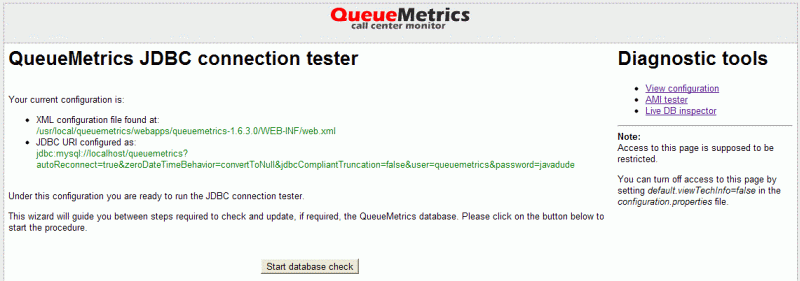
Once you access the DB updater, it will check and update the database and then optimize it for maximum access performance. This may take a while if you have a lot of queue_log data loaded into it.
From this very page, you can also check a number of system properties through the so-called DbTest Diagnostic Tools:
-
The current QueueMetrics configuration properties settings
-
The Java environment used
-
The Java memory and CPU settings
-
Whether the AMI connection to the Asterisk is working
-
The current PBX configuration
-
The current MySQL storage data (with search ability)
For further details, see the complete description of the DBTEST module.
| As this page lets you access the inner configuration of QueueMetrics, it should be turned off on publicly accessed systems. This can be obtained by setting a configuration parameter as detailed on the DBTEST page itself. |
Backing up
To create a complete backup of your QueueMetrics installation:
-
Dump the
queuemetricsdatabase:mysqldump queuemetrics > queuemetrics-backup.sql -
Copy the configuration file:
cp /etc/default/queuemetrics queuemetrics-defaults-backup
Store both files in a safe location. These two items are sufficient to restore your QueueMetrics installation on a new server.
A more detailed explanation is available at Backing up QueueMetrics.
Using queuemetrics-cli
The queuemetrics-cli tool is a convenience command-line utility installed
to /usr/bin during setup. It provides quick access to common service
management tasks, so you don’t have to remember
them and will ask for sudo privileges when needed.
Usage:
queuemetrics-cli <command>Available commands:
| Command | Description |
|---|---|
|
Restart the QueueMetrics service |
|
Stop the QueueMetrics service |
|
Show the current status of the QueueMetrics service |
|
Generate a thread dump and class histogram, saved to |
|
Display the installed QueueMetrics version |
|
Run the database schema updater manually |
Examples:
# Check if the service is running
queuemetrics-cli status

# Show the installed version
queuemetrics-cli version

# Generate a thread dump for troubleshooting
queuemetrics-cli threaddump
Updating from a RPM-based distribution
Suppose you are updating a system that was originally installed from the RPM package (via yum), and that this system:
-
has a license installed
-
has some customizations (e.g. changes to the amount of usable memory, uses a databse on a different server, etc.)
Moving to the standalone version requires following the procedure below. The advantage of the standalone version is that it does not depend on a specific package manager and works on any modern Linux distribution.
| If you have WombatDialer running on the same server, we strongly suggest that you move the new QueueMetrics to a different server, as the new standalone settings might conflict with the existing ones (e.g. using the same HTTP port, using incompatible versions of Java, etc.). |
Collecting information from the old installation
| This procedure describes the general case, and only goes so far: we have no way of knowing what customizations were made to your specific installation over time. It is your responsibility to review your system and identify any changes not covered here before proceeding. |
First, retrieve the old license key:
grep LICENZA_ARCHITETTURA /usr/local/queuemetrics/qm-current/WEB-INF/tpf.propertiesLook at the last line of the output: this code will be needed to install your license on the new system. Copy it somewhere; you’ll need it to activate
If QM connects to a remote database, you also need to recover its connection credentials:
grep JDBC_URL /usr/local/queuemetrics/qm-current/WEB-INF/tpf.propertiesTo check whether any configuration changes were made (e.g. the amount of usable memory, or a specific time zone), run:
cat /etc/sysconfig/qm-tomcat6and check for any changes (they are usually added to JAVA_MEM). Note down anything you find, as you will need to reapply it after the upgrade.
Decommissioning the old system
Stop the running service, make a safety backup of all data, and uninstall the original package. This is also a good time to ask yourself whether it is actually worth upgrading the existing system in place, or whether it would be better to also replace the operating system with a fresh install on a different server - for example, because the current OS is too old (e.g. CentOS 8).
Either way, the procedure is very similar.
First, take a full dump of the MySQL database. It is important to understand what is actually being decommissioned here: it is the old server (or, when reinstalling in place, the old package) that goes away - not the database itself, whose contents you want to carry over intact to the new installation. Strictly speaking a dump is not required when reinstalling on the same server (see below), but it costs little and is a safety net in case something goes wrong; it becomes essential if you are moving to a different server, since in that case the old server - database included - will no longer be available. Note that this may require a fair amount of disk space.
mysqldump queuemetrics | gzip > queuemetrics.sql.gzThen copy the files collected earlier (license and configuration):
cp /usr/local/queuemetrics/qm-current/WEB-INF/tpf.properties .
cp /etc/sysconfig/qm-tomcat6 .
At this point, remove the queuemetrics package, which will also remove the database. Since the files that hold the database contents keep the same format and are already in the right place, reinstalling should just work. If it does not, drop the database and reload it from the backup you just made.
service queuemetrics stop
yum remove queuemetrics
Reinstalling on the same server
You can now install the new required packages:
dnf install -y java-25-openjdk mariadb-server tar gzip nano

curl -sL get.queuemetrics.com | bash
Now let’s set the new license key and reapply any Java environment customizations noted earlier:
nano /etc/default/queuemetricsand edit the properties you need:
QM_LICENSE_KEY="....."
QM_JDBC_URI="...."
QM_JAVA_MEM="-Xms1G -Xmx1G"| You should find the license key already installed - just check that it matches the one you have saved. |
Once done, restart QueueMetrics and then check that it is up:
queuemetrics-cli restart

queuemetrics-cli status
As soon as you connect to the QueueMetrics webapp, the database upgrade wizard will appear - follow it to completion, and QM will be ready to go.
If you access local recordings, make sure you grant appropriate file permissions.
Installing on a different server
dnf install -y java-25-openjdk mariadb-server tar

curl -sL get.queuemetrics.com | bash
The installation will create the default database; overwrite it with your backup:
zcat queuemetrics.sql.gz | mysql queuemetricsApply the environment customizations described above, then restart QueueMetrics.
Installing QueueMetrics using Docker
Docker is an infrastructure-management tool that lets you run software "as-if" it was running on a dedicated VM, without the administrative and technical overhead of running a separate VM.
Docker makes your life very easy if you need to manage multiple copies of QueueMetrics - you just run them. Docker makes it very easy to install QueueMetrics, no matter what the underlying OS is - the Docker image contains QueueMetrics with all its dependencies, a MySQL server and all the needed tooling.
And when you need to upgrade, you just terminate the old instance and start a new one pointing to the same data - it just works.
| Even if Docker makes your life easier, you need to familiarize yourself with it before you consider running a production service on it. |
Installing the official QueueMetrics Docker image
Create a data container
The first thing you have to do is to create a place to store persistent data - this might be a directory on your disk or what Docker calls a "persistent data-only volume".
The easiest way to get started is to use a local directory. Let’s say you create a directory called '/opt/qm1data' for QM to store its data in.
Start the QueueMetrics image
You can easily start QueueMetrics with the syntax:
docker run --name=QM1 --volume=/opt/qm1data:/data -P -d loway/queuemetrics
If you do, Docker will download the current version of QueueMetrics from Docker Hub and will run it. The whole process typically takes only a few seconds.
When done, you can issue a "docker ps" to see what is happening:
# docker ps
CONTAINER ID        IMAGE                COMMAND             CREATED             STATUS              PORTS                     NAMES
7c2920e8e28f        loway/queuemetrics   "/ww/run"           12 seconds ago      Up 10 seconds       0.0.0.0:32770->8080/tcp   QM1
This means that if you connect to your server as 'http://server:32770/queuemetrics' (as written under the PORTS column) you will access your new QueueMetrics instance. You can see that the MySQL database and QueueMetrics configuration and license are visible under '/opt/qm1data'.
If you want, you can run multiple instances of QueueMetrics on the same machine:
# docker ps
CONTAINER ID        IMAGE                COMMAND             CREATED             STATUS              PORTS                     NAMES
7c2920e8e28f        loway/queuemetrics   "/ww/run"           12 seconds ago      Up 10 seconds       0.0.0.0:32770->8080/tcp   QM1
c152da318fe2        loway/queuemetrics   "/ww/run"           17 seconds ago      Up 16 seconds       0.0.0.0:32769->8080/tcp   QM3
6fef35c26c6d        loway/queuemetrics   "/ww/run"           48 seconds ago      Up 46 seconds       0.0.0.0:32768->8080/tcp   QM2
as long as each of them points to a separate data volume and has a proper license key.
| If you plan on running only one instance of QM, it would be easier to set the same port on the host and on the container - see Using fixed ports. |
Accessing an instance using the shell
You can enter the QM1 instance by running:
docker exec -it QM1 bash
This will run a bash shell, and you can do whatever you want - install RPM packages, inspect the system, check error logs, make backups using mysqldump (see Backing up).
| Keep in mind that all data that is not stored under '/data' is stored in the main image, and the main image will be removed on restart/upgrades. |
Terminating an instance
To terminate one instance:
docker stop QM1
docker rm QM1
Everything will be removed, but the contents of your data folder.
Using a data-only volume
If you prefer, you can run QueueMetrics using a named data-only volume:
docker run --name=MYQM loway/data true
docker run --volumes-from MYQM -P -d loway/queuemetrics
This is very similar to using the local directory, though it makes your life harder to just check what is on the volume.
If you do not start QueueMetrics with a data container, it will create one within the current disk image - but when you throw away the image, all data created will be lost.
Applying a license
When running QueueMetrics under Docker, the easiest way is to use the Install new license key page.
If you prefer, the license key can be passed in from the outside as an environment variable, using the -e flag of docker run, when starting the container:
docker run -e QM_LICENSE_KEY="your-license-key-here" --name=QM1 --volume=/opt/qm1data:/data -P -d loway/queuemetricsThe license key only needs to be specified once: it is written to the instance’s persistent data, so it does not need to be passed again on later restarts.
For the full list of environment variables that can be passed to a QueueMetrics Docker instance, see Configuring license, memory, time zones and more.
Upgrading QueueMetrics
In order to do an upgrade, you must have started the original instance using a data volume or a shared folder.
If you did, you first download the new QueueMetrics image, then you stop (and remove) the current version and then run the image again using the same data folder:
docker pull loway/queuemetrics:latest
docker stop QM1
docker rm QM1
docker run --name=QM1 --volume=/opt/qm1data:/data -P -d loway/queuemetrics
At this point, it will just work.
Please note that system logs, the compilation cache and everything else that is not in your persistent data folder will be deleted.
Tips and tricks
Defining a fixed QM port
If you want an instance to use a fixed port (e.g. because you have a proxy in front), you can easily do that using the syntax:
docker run --name=QM1 -p 12345:8080 -P -d loway/queuemetrics
This will use local port 12345 and redirect it to the instance’s port 8080.
It is of course very common to use the host’s port 8080 as the public access port for QM, as in:
docker run --name=QM1 -p 8080:8080 -P -d loway/queuemetrics
Note that to use a fixed port on the host, it must be available - you cannot run two instances on the same host port.
Configuring license, memory, time zones and more
The default QueueMetrics instance runs with just 128M of Java heap - not enough to run a large production server.
Environment variables can be passed to docker run (using the -e flag) to configure the instance without editing
any file inside the container; they are the same QM_* settings used by the standalone installation
(see Further configuration). For example, to increase the JVM heap size:
docker run -e QM_JAVA_MEM="-Xms1G -Xmx1G" --name=QM1 --volume=/opt/qm1data:/data -P -d loway/queuemetrics
Multiple variables can be passed by repeating the -e flag. As with the license key, these values are only needed
on first start: once written to the instance’s persistent data, they are reused automatically on every subsequent
restart.
The following variables are supported:
| Variable | Value | Notes |
|---|---|---|
|
license key string |
The QueueMetrics license key. Leave empty to run in free/demo mode. See Adding a license. |
|
IP address |
The address the server listens on. Default: |
|
TCP port |
The port the server listens on. Default: |
|
JDBC connection string |
Connection string for the QueueMetrics database (host, database name, user, password and connection parameters). |
|
directory path |
Directory where QueueMetrics writes its log files. Default: |
|
log level |
Log verbosity, from least to most verbose: |
|
JVM heap options |
JVM heap memory allocation, e.g. |
|
JVM options |
Additional JVM options for performance and behavior tuning. The defaults are sensible and rarely need to be changed. |
|
JVM system property |
Forces the JVM to use a specific IANA time zone (e.g. |
|
JVM options |
Enables JMX remote monitoring, opening ports 30000/30001 for tools such as VisualVM or JConsole. See JMX Counters. |
|
JVM proxy options |
Configures an HTTP/HTTPS or SOCKS proxy for outbound connections (license validation, API calls). See Using an HTTP/S proxy. |
Configuring QueueMetrics properties
You can configure a QueueMetrics instance in many ways:
-
Accessing it through your browser and configuring it
-
Editing the contents of the data directory
-
Using the QueueMetrics JSON services to create users and queues
Though the third option is the most practical if you need to deploy a large number of instances, all three options are quite feasible.
Installing from RPM
The historical RPM-based installation of QueueMetrics is no longer supported. This is because many PBX distributions are no longer based on RHEL and its derivatives, and moving to a single standalone install script lets us support a much wider range of operating systems with the same procedure.
-
If you are installing QueueMetrics on a new system, see Installing QueueMetrics.
-
If you are updating an existing RPM-based installation, see Updating from a RPM-based distribution.
Configuring QueueMetrics
Now that you have got QueueMetrics running you need to configure it in order to retrieve data from the PBX.
Uniloader configuration
On the PBX system, edit the file /etc/sysconfig/uniloader; you
need to set the following values in order to tell Uniloader to work with
the local QueueMetrics database:
URI="mysql:tcp(127.0.0.1:3306)/queuemetrics?allowOldPasswords=1"
LOGIN=queuemetrics
PASS=javadude
TOKEN=P001
If you’re running a PBX server cluster you also have to modify the TOKEN value, giving to each of them a different partition name (usually P001, P002, P003, etc). This is fundamental to avoid any possible concurrent writing issue.
| Each PBX server’s Uniloader MUST use a different partition. |
Now restart Uniloader:
service uniloader restart
If Uniloader is on a different machine than QueueMetrics (and MySQL) you will need to create a new database user able to connect remotely.
Log in where MySQL is as root:
# mysql -uroot -p
One you’re in create a new remote user and give it all grants on the queuemetrics database:
mysql> CREATE USER 'queuemetrics'@'%' IDENTIFIED BY 'javadude';
mysql> GRANT ALL PRIVILEGES ON queuemetrics . * TO 'queuemetrics'@'%';
mysql> FLUSH PRIVILEGES;
and then set the correct database in the URI parameter of Uniloader.
| Uniloader is very flexible and has multiple data upload modes, plus it can perform many functions. See its manual at https://docs.loway.ch/Uniloader/index.html |
QueueMetrics configuration
If you have a single PBX server and have not modified the TOKEN value in the Uniloader configuration add (or, if exists, modify), in the configuration properties, the following values:
default.queue_log_file=sql:P001
callfile.dir=tcp:admin:password@ip-address
        # user:pass are the credentials for the Asterisk's AMI interface.
        # You might have to configure a user in each of the
        # Asterisk servers' /etc/manager.conf file.
        # serverhost is the IP address of that server.
QueueMetrics is now already able to retrieve information from
the PBX.
Instead, if you have a server cluster add or modify these values as
follows:
default.queue_log_file=cluster:*

# Put here the server names (A, B, C, etc could be a choice) separated
# by a pipe.
cluster.servers=A|B|C

# For each of them put these values, replacing 'servername' with
# the name chosen above
cluster.servername.manager=tcp:user:pass@serverhost
        # user:pass are the credentials for the Asterisk's AMI interface.
        # You might have to configure a user in each of the
        # Asterisk servers' /etc/manager.conf file.
        # serverhost is the IP address of that server.
cluster.servername.queuelog=sql:partition-name
        # partition-name is the value of PARTITION in the Uniloader's
        # configuration file in that server.
Include QueueMetrics dialplan in Asterisk
Now, to enable QueueMetrics to place calls and log the agents on and off the queues you need to include the QueueMetrics dialplan in Asterisk. If you installed QueueMetrics with yum, you can find it in /usr/local/queuemetrics/qm-current/WEB-INF/mysql-utils/extensions-examples/extensions_queuemetrics_18.conf.
Copy the file under /etc/asterisk/ then add the following line at the end of your extensions.conf, or extensions_custom.conf if your PBX has this file:
#include extensions_queuemetrics_18.conf
Then open the Asterisk CLI and reload the dialplan:
Asterisk CLI> dialplan reload
Granting access to local recordings
QueueMetrics runs as the queuemetrics user (group queuemetrics), while call recordings on
the PBX are usually owned by the PBX’s own user and group; QueueMetrics cannot read them
by default, and click-and-listen will fail.
The simplest fix is to add the queuemetrics user to the PBX’s group, so that it inherits
read access to the recordings without changing any file permission.
The example below is for Asterisk, but the same reasoning applies to any PBX, including
FreeSWITCH: identify the user/group the PBX process runs as, and the group that owns the
recordings directory, then add queuemetrics to that group.
To find the right group, run the following diagnostic commands and compare their output:
echo "* Directory permissions:"; ls -ld /var/spool/asterisk/monitor
echo "* Asterisk process:"; ps -eo user,group,cmd | grep '[a]sterisk -'
echo "* asterisk.conf config:"; grep -E '^(runuser|rungroup)' /etc/asterisk/asterisk.conf
If all three outputs agree on the same group, that is the group to use. If they disagree,
trust the value in asterisk.conf, as that is what actually determines the group the process
will run as on the next restart.
Once you know the group, add queuemetrics to it:
usermod -aG <group> queuemetricsGroup membership changes only apply to new processes, so restart QueueMetrics for the change to take effect:
queuemetrics-cli restart
The same issue (and solution) applies if you read the queue_log file directly.
|
Does it work?
QueueMetrics has some test tools to check if all is running the right
way and for troubleshooting.
The System Diagnostic Tools page offers a number of tools that check
database and AMI connections and more (see Troubleshooting).
To check that everything works you can open your browser and point
it to http://hostname:8080/queuemetrics, the first time you run it you
might get an error, it will disappear in a few seconds and QueueMetrics
will guide you through the database configuration; probably you’ll just
need to confirm without making any change.
After that you will be able to log in with the default username
demoadmin and password demo.
Obviously, at the moment, no data is shown.
Troubleshooting
Understanding QueueMetrics memory requirements
To understand QueueMetrics' memory needs, you must consider that the memory requirements are roughly proportional to the width of the analysis and to the number of required events to track. You may think of it as the number of calls plus the number of agent events, i.e. agents logging on and off and setting pauses on and off.
Calls can be restricted by the queue filter, but all agent events in the required time window are tracked. This gives you an idea of the memory usage.
Though the actual memory requirements depend considerably on the actual content of your analysis and the exact brand and version of Java virtual machine that you are running, you should expect to be possible to track about 80,000 calls and 40,000 agent events with a standard 64 megabyte Java VM and Tomcat running.
You can of course start your servlet container with more memory in order to allow more room for larger analyses. See Further Configuration.
Consider also that Java will never return this memory to the system free memory pool, even when it stops using it. The only way to have this memory returned to the system memory pool is to stop the Java VM and restart it. Therefore, it’s a good idea to perform a scheduled restart of the servlet container, to avoid possible memory leaks and to reclaim now-unused memory to the main pool.
As a last note, the memory footprint of a Java VM may be quite larger than the memory you give it as Java heap space, as it will need RAM space for the VM itself and all its required libraries. Overheads of 100-200 megabytes are not unheard of, depending on the Java Virtual Machine in use.
A more in-depth discussion of QueueMetrics memory usage and live monitoring can be found on the "Advanced Configuration Manual", chapter "Tuning QueueMetrics memory settings".
A real-life example for a large call-center with about 400 agents logged on and running on a dedicated server may be like:
-Xms4G -Xmx4G -server -XX:+UseG1GC -XX:MaxGCPauseMillis=500 -XX:InitiatingHeapOccupancyPercent=45
But the actual optimal configuration on a large system should be determined by running the system for a while under the required workload and monitoring the actual resource consumption.
Understanding basic security mechanisms
Each user accessing QM should have his own user and password. The administrator can easily setup multiple accounts from the administrative interface. All user activity is tagged to the user performing it, so it’s a good idea to give an account to each person accessing the system. Accounts can be created, blocked and revoked in a matter of minutes.
Each feature that QM offers is enabled by a special key, as if there was a padlock protecting it from unauthorized access. The administrator gives each user a key ring that specifies which locks the user can open, and therefore what the user can do. A list of keys used in QM is available in Appendix A: Security keys.
To ease the burden of administering multiple users, keys can be grouped into classes. Each class offers the additional advantage of giving the key ring a label, so that it’s easier to see whether a user is an Administrator, a User or an Agent by looking at the label and not at the very keys s/he holds.
Individual keys can be granted or revoked individually to handle special cases, in addition to the ones anyway present in the user’s class. For more information, see Editing QueueMetrics settings.
A list of default users provided with the standard QM installation and their default passwords can be found in Default users.
Just to be on the safe side, QueueMetrics keeps an 'Audit Log' of all activities that may have security implications; see The Audit log for more details.
QueueMetrics is not available
Often this is a firewall problem. First of all, check if QueueMetrics is running:
lsof -i -P | grep 8080
If it returns something then QueueMetrics is running; if so, do try temporarily stopping the firewall:
service iptables stop
Now retry pointing your browser to http://hostname:8080/queuemetrics.
If it works now, you should setup your firewall in order to accept incoming connections to port 8080.
The System Diagnostic Tools
QueueMetrics has some tools that help you to solve most of the possible
issues.
You can find them clicking on System Diagnostic Tools or pointing your
browser to http://hostname:8080/queuemetrics/dbtest/.
-
View configuration: this page lets you know what configuration properties are used by QueueMetrics and the JVM.
-
AMI tester: it’s useful to test to have a working AMI connection with the PBX server(s).
-
Live DB Inspector: use it if you want to check QueueMetrics is receiving the correct data from the PBX server(s).
-
RAM caching: it allows you to look at the QueueMetrics caching stats and to clean the cache when necessary.
You can have a full description in chapter Using the DbTest Diagnostic Tools.
Using an HTTP/S proxy
QueueMetrics needs to establish direct HTTP outbound connections:
-
to validate the current license.
-
to access external services (e.g. JSON audio searching, external user auth, OAuth authentication)
If such connections are unavailable, then QM will not even start up (the Java process will start, but the GUI won’t become available).
As in some corporate environment, direct outbound connections are not possible, so you need to use an intermediate proxy.
The JVM has a standard way to set up HTTP proxies, by setting the JVM properties:
-Dhttp.proxyHost=10.10.1.1 -Dhttp.proxyPort=8888
-Dhttps.proxyHost=10.10.1.1 -Dhttps.proxyPort=8888
In the example above, you tell QM to use a proxy located at address 10.10.1.1 on port 8888
that handles both HTTP and HTTPS traffic.
Or, to set up a SOCKS proxy:
-DsocksProxyHost=1.2.3.4 -DsocksProxyPort=63080
You will need both HTTP and HTTPS proxy access, as license validation happens over HTTPS.
| These properties are ready to be edited at Further Configuration. |
To check whether connectivity is working correctly, you can use a script called
checkLicenseConnectivity.sh that can be found under WEB-INF/README/.
For example, to check connectivity with no proxy, you would simply run:
# ./checkLicenseConnectivity.sh
============================================================
  Attempting connection to the Loway licensing servers
============================================================

No proxy configuration settings
============================================================
   All went well.
============================================================
While to attempt using a SOCKS proxy, you could for example try:
# ./checkLicenseConnectivity.sh -DsocksProxyHost=127.0.0.1 -DsocksProxyPort=63080
============================================================
  Attempting connection to the Loway licensing servers
============================================================

Proxy configuration:

 |Property      |Value    |
-+--------------+---------|
0|socksProxyHost|127.0.0.1|
1|socksProxyPort|63080    |


Feb 04, 2022 9:21:44 AM it.loway.tpf.web.LowayHttpClient connect
SEVERE: Error accessing license server
java.net.SocketException: Connection refused (Connection refused)
    at java.net.SocksSocketImpl.connect(SocksSocketImpl.java:435)

============================================================
  Connection failed:
Error accessing HTTP URL
============================================================
Version numbering scheme
Since January 2012, QueueMetrics uses a numbering system that is based on when a major release is built. The version is then year plus the month of the release. So 12.01.1 is the first in the family that was released in January 2012. See how easy that is? It is also nice because then you know exactly how old or new the version you are dealing with is.
Older versions of QueueMetrics had a "classical" numbering scheme, as per 1.2.3. There is no change on the licensing keys or anything else from the old to the new numbering scheme.
Backing up QueueMetrics
The current state of a working QueueMetrics system is held in two places:
-
its configuration files, containing:
-
the current license and database connection (stored in file
/etc/default/queuemetrics)
-
-
its database (usually named
queuemetrics), containing everything else, including call data and audit logs.
Therefore, in order to back up a running system, you need to:
-
back up the original install file (e.g. RPM file, TGZ, Docker image or whatever you used to install). Recent versions of QueueMetrics are always available from Loway, but older versions are removed. You may also simply back up the whole webapp, that will contain all of QueueMetrics plus its configurations.
-
back up the configuration files, and
-
back up the database
In order to back up the database, you may simply run:
mysqldump queuemetrics | gzip > queuemetrics.sql.gzto create a compressed database dump, and:
gunzip --to-stdout queuemetrics.sql.gz | mysql queuemetricsto reinstall it.
As the database might be very large, before you attempt a backup, you must be sure that you have enough disk space to store it in full. The Live Inspector page allows you to see how large the database is on disk, and estimates how large its compressed data might be.
If space is at premium on the QueueMetrics server, you may perform a full backup from a different server
by telling mysqldump to connect remotely, and using scp (or a similar tool) to copy files.
|
Fixing damaged indexes
Sometimes, the database will refuse to use an existing index. This may happen if the index file is broken (e.g. full disk, unclean shutdown, crashed tables) - though sometimes this happens for no apparent reason.
You will notice that operations take a lot more to complete - a report that took a second or two starts taking a few minutes to run - and that all the load in on MySQL/MariaDB and/or disk access.
The easiest way to solve the issue, if you are not a MySQL/MariaDB expert, is to:
-
Stop QueueMetrics and Uniloader
-
Make a database backup
-
Drop and create the database (existing permissions will be kept, so you don’t have to create them again)
-
Import the backup - data will be inserted from scratch, and all indexes will be rebuilt
-
Restart QueueMetrics and Uniloader
E.g.
service uniloader stop
service queuemetrics stop

mysqldump queuemetrics | gzip  > queuemetrics.sql.gz
echo "drop database queuemetrics; create database queuemetrics;" | mysql
gunzip --to-stdout queuemetrics.sql.gz | mysql queuemetrics

service queuemetrics start
service uniloader start
Make sure that you have enough disk space for the backup to complete successfully, and run this off-hours, as a very large database might take hours to backup and rebuild.
License keys
QueueMetrics ships with a limited evaluation key that lets you use the system freely with up to two agents. If you need to evaluate with a larger call center, you will be sent a temporary key that will process as many agents as needed. The same happens when you decide to buy the product.
The key is a single long hexadecimal sequence with minuses in the middle and looks like the following string:
012345678-0987564D-3C082EF8-012345678-0987564D-3C082EF8
The length of the key may vary according to the features needed.
Once Loway sends you the temporary or official key, you can install it either through the graphical interface or manually through a shell.
What about licenses?
QueueMetrics is licensed based on:
-
the number of agents it needs to track
-
the number of PBX servers you want to monitor
-
a specific duration
You need an agent for each separate agent entity you want to keep track of - so if you have two shifts of 20 persons each, you need 40 agents total, no matter how many of them are logged in at once. If your agents change over time and you want to keep track of both present and past ones each using a different code for each, you will have to factor that in as well. So, for most call centers, you will need something that matches the number of paychecks you write every month for call-center agents.
QueueMetrics natively tracks only calls on queues, so any entity that is not answering a queue (or taking part in an outbound campaigns) is not counted. If you use automated outbound tracking, all phones will be tracked and so every one of them will be counted as one agent.
You will need a cluster license if you want to track multiple PBXs at once - whether this happens because you want to view multiple PBXs from the same GUI (e.g. different branches, or different countries) or because you have a high-availability system where calls may be processed in multiple locations. Vanilla QM licenses let you track only one PBX, but it’s possible to have more when ordering the license. See Monitoring clusters with QueueMetrics for further information on clusters.
Each license has a specified expiry date, that is set at creation and cannot be altered. After a license is expired, the system displays an error message and becomes unavailable. Before this happens, it displays a message to remind you when the license is almost expired.
If you need to install multiple QM systems, you will need to order a separate key for each system. For the common case where you have a stand-by system for high availability, you may order it together with its master key and it has a special price.
| If you use a key on more than one system at once, the key may be blocked, the systems will refuse to start and you may incur in a reactivation fee. So don’t do it. QueueMetrics systems need to access the Internet for key validation and will not start if the network is unreachable. |
Installing a new key through the GUI
Log on to QueueMetrics as "demoadmin" and click on the License page, if you have the correct grants you should see a label called "Install new license key"; click on it.
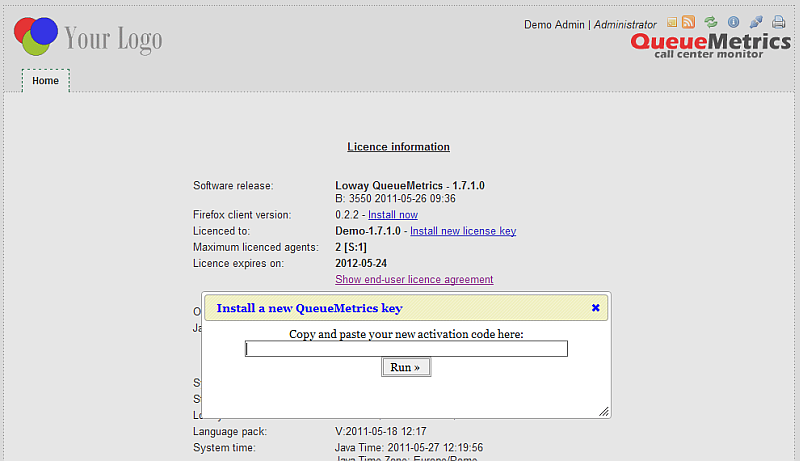
Copy the activation code you received by e-mail into the license box and press "Install". The system will restart in a few seconds (you may see a blank page - if you do, just try and reload). Log off an on again. On the License page you should see the new key.
As an alternative, you can set the license in the configuration file. The former method (GUI) is easier if you manage the system yourself; the latter is better if you manage a fleet of QueueMetrics servers. To install a license through the configuration file:
-
If you installed a standalone version, see Adding a license
-
If you are running a Docker image, see Applying a license
What happens if you install two licenses, one from the GUI and one in the configuration?
QueueMetrics tries both licenses in sequence - first the last one installed through the GUI (if present), then the one set in the configuration file. The first of them that is active is then used.
If you want to use the one set in the configuration file, but already entered one though the GUI, you can look up the property qm.license in the preferences editor and set it to an empty string.
Monitoring clusters with QueueMetrics
QueueMetrics is able to monitor clusters of PBX servers, in order to monitor large call centres that are spread over a number of physical machines. This setting is often used for large deployments, as it leads to a number of advantages:
-
The overall call center is safer, as the failure of one single PBX box leads to a down of only part of the call center and not its entirety
-
The call center can easily grow to hundreds of seats simply by adding more PBX servers, without special optimizations or weird configurations
-
There is less risk of a deadlock on one single PBX instance, as the load on each box is kept low enough not to be a problem
In order to implement this, QueueMetrics has been extended to support the notion of cluster, that is a set of PBX servers working together as if they were one single box. The cluster can be set up as is better fit, for example:
-
Different queues for each PBX box, or
-
The same queues on more than one PBX box
-
Some boxes are used for inbound and some for outbound
When QueueMetrics runs in cluster mode, the whole call center is monitored as if it were a big single PBX box, and the basic unit for reporting remains the set of selected queues. QueueMetrics will internally query the different servers or queue_log files as needed, and will automatically dispatch events to the correct PBX box.
Setting up a cluster
To set up a cluster, you should define the following configuration variables in configuration properties:
cluster.servers=aleph|trix
This statement tells QM that the current cluster has two members, that are called "aleph" and "trix". We suggest using a short name for each server, as it will appear in many different screenshots. One option would be using the capital letters, like ""A", "B", "C" etc for different members of the cluster.
The name you assign for the each machine is called token when uploading data.
|
For each server (in our case "aleph", but we’ll have to repeat it for all members of the cluster), we will define the following properties:
cluster.aleph.manager=tcp:user:pass@10.10.3.5
This tells QueueMetrics that the manager interface for aleph can be found at 10.10.3.5, logging in as "user" with password "pass". The manager interface is needed to run Live monitoring and can be used to run commands to Asterisk (like logging agents on and off, starting chanspy sessions, etc).
cluster.aleph.queuelog=sql:P001
This tells QM that the queue_log file (or its contents) can be downloaded from partition P001 of the QM database. You must use MySQL storage in order for clustering to work at all.
cluster.aleph.monitored_calls=/share/aleph/calls/
This tells QM where to look for recorded calls on each PBX server. This is used by QueueMetrics in order to click-and-listen to recorded calls. A NFS or SMB share is usually a good starting point. As an alternative, you can enter the URL of an XML-RPC server that will return information about the recorded call (for more information on this topic, see Enabling XML-RPC call listening and streaming).
cluster.aleph.callfilesdir=/share/aleph/callfiles/
If you do not want to connect to your PBX servers using the manager interface, you still need a way to send it commands (e.g. to start a chanspy session). In order to do this, you should give QM a directory to write callfiles to. If you use the manager interface, leave this entry blank. (We strongly suggest doing so and using the manager interface instead).
cluster.aleph.audioRpcServer=http://myserver/xmlRpcServer
If you use an XML-RPC "broker" in order to used live calls listening using a third-party software like Orecx, you should enter its URL here. This must be activated at once for all servers by not leaving blank in the property default.audioRpcServer. In all other cases, just leave this property blank. (for more information on this topic, see Enabling XML-RPC call listening and streaming).
Actually, all "default" parameters that pertain to audio playback (Pluggable Listeners) are automatically transformed from the form "default" to "cluster.SERVER": for example, in cluster mode, the parameter default.monitored_calls will be automatically read from the property cluster.SERVER.monitored_calls.
|
cluster.aleph.agentSecurityKey=AAA
When using the agent’s page in cluster mode, you must make sure that each agent "points" to the correct server, as this server will be used for both pulling agent’s data and sending logon/logoff commands. This is obtained on the agent’s page through a pull-down menu where the agent must select the correct server he’s logged on to. In order to avoid mistakes, it is possible to protect a server by adding a security key, so that only agents having that security key will see that server. If an agent has only one possible server, that server will be automatically selected. In practice, this means that you could create two agent classes, we call them AGENT_A and AGENT_B. They have the same keys, but in class AGENT_A there is the key SERVER_A, and in the other SERVER_B. We protect each server entry with SERVER_A for the first and SERVER_B for the other. Then we assign users to classes AGENT_A (for agents working on the first server) and AGENT_B (for agents working on the second server). If you want agents to manually switch servers, or your cluster is made up of only one machine, leave this blank.
Setting up your PBXs as members of the cluster
On each box that is a member of the cluster, you should set up the following items:
-
Call recording: if calls are recorded to be played back through QueueMetrics, you should store them all in a directory that is accessible through the QueueMetrics server, or set up an external XML-RPC call broker.
-
Commands: if commands are to be sent to each PBX box, you should set up the [queuemetrics] context in the dial plan, and make sure the manager interface is set up or the /var/spool/asterisk/callfiles directory is shared and accessible to the QueueMetrics server. A sample [queuemetrics] context can be found under WEB-INF/mysql-utils in the directory extensions-examples.
-
Logs: you should use uniloader to upload data to a partition on the main QueueMetrics database. Make sure that each server uploads data to a different partition in the same database, that is, uses a different token. We suggest using the HTTP upload mode, as it is more resilient to errors and just requires HTTP access from the PBX to your QueueMetrics instance. While not recommended, it is possible to override the
tokensettings for a specific user by setting thetokenfor.usersystem property. -
Clock: make sure the clocks on all members of the cluster is synchronized, and the same goes for the clock used on the QueueMetrics box and on the MySQL database. An utility that sync your machine’s clock to an external timing source like ntpdate will take care of this problem if run periodically through cron.
Setting up QueueMetrics to access the cluster
First thing, you should make sure that you have a clustered license for QueueMetrics and that your license is big enough in terms of agents to support all agents that are present in the call-center. Older licenses are valid for one PBX server only and QueueMetrics will complain they are not correct.
To report on all members of a cluster, you should set the property:
default.queue_log_file=cluster:*
This means that all boxes defined as members of this cluster will be used as a data source.
To report on a subset of the members of the cluster, you will use a syntax like:
default.queue_log_file=cluster:A|B|C
This way you will be reporting on boxes A, B and C.
If you want to report only on a single box, the syntax:
default.queue_log_file=cluster:C
Will be appropriate.
You can then change this property on-the-fly by going to the report page and editing as needed under the report’s settings.
If you have agents using QueueMetrics’s Agent’s pages, you should set them up so that each agents points to its correct server.
Using the Agent’s page with a clustered environment
The agent’s page on QueueMetrics acts as a kind of portal for an agent; she can use it to log on, log off, go to pause, enter pause codes, launch external apps linked to a call (e.g. CRM apps) and enter call codes (see The real-time agent page).
As the number of agents can be very high if compared to the number of supervisors who run reports or monitor the call center, QM uses a "minimal impact" policy: the page must be refreshed manually by each agent in order to avoid hammering the server with repeated page hits and the analysis run is a stripped-down, low-fat version of the full analysis QueueMetrics is able to perform. When coming to clusters, this means that to avoid useless load, calls for an agent will be searched only on the server the agent is working on and not on the entire cluster.
Also, we have the problem of defining where an agent is supposed to work: as QM can issue commands to the PBX on behalf of an agent, it needs to know to which PBX server those commands must go. This is obtained by using the Server selection that will appear on the agent’s page if QueueMetrics is running in clustered mode. If more than one server is selectable, the combo box will let the agent switch server as she best sees fit (if only one server is selectable, QueueMetrics will use that server immediately and will make the combo locked).
As a QM installer, you can control which servers are selectable to which agents by setting the properties cluster.---.agentSecurityKey correctly for each PBX server in the cluster.
Logging into a server from the Icon Agent’s Page
When working on a clustered environment, an agent is allowed to access only one server at a time. The server selection is usually done through the Agent Logon Panel, where you choose the queues to log on to, the server to use and the agent extension.
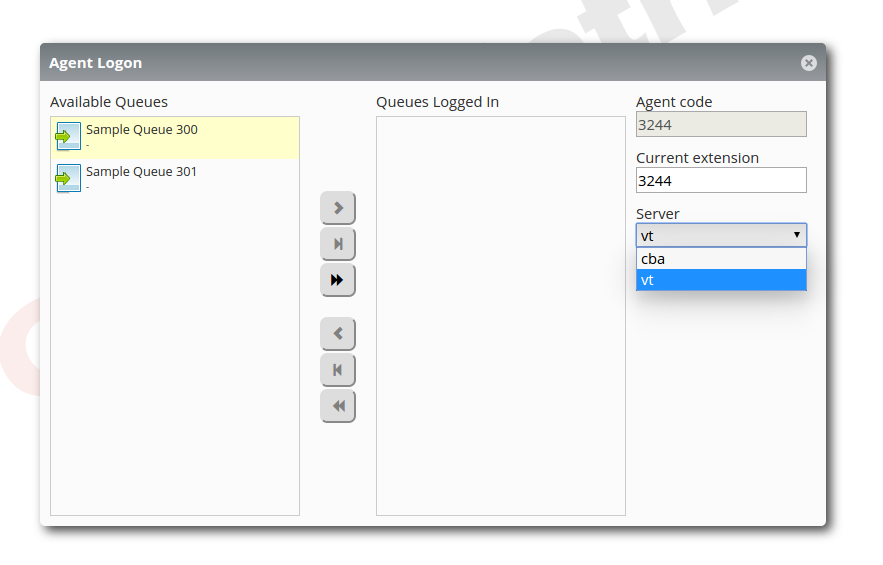
the first time an agent logs into the Icon Agent’s Page though, a special panel will appear that will ask the agent for the preferred server. This can be changed later on from the Agent Logon Panel.
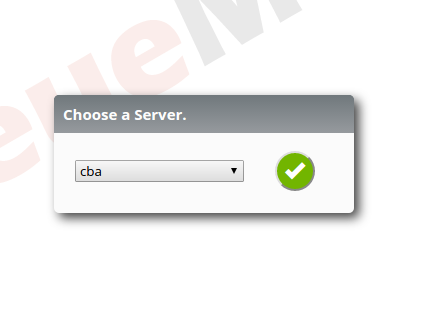
There are some rules that QueueMetrics enforces, that must be understood:
-
An agent can log onto only one server at a time.
-
When the agent is logged onto a queue of a particular server, the server selection will be disabled.
-
If a default server is set for the agent, QueueMetrics will disable the server selection for the agent, therefore the agent will not be able to use a server different from the default server.
To sum it up, an agent will be able to choose a server only if three conditions are met:
-
QueueMetrics is working in Cluster Mode.
-
The agent is not logged onto any queue in any server.
-
There is no specified default server for the Agent.