Introduction
FusionPBX is a very powerful open-source PBX that is able to run a large number of tenants on a single physical cluster. It is typically used to offer hosted telephony to small-to-medium businesses. A lot of these businesses are running internal helpdesk and support lines, or contacting their own customers in a systematic fashion, and are needing a way to keep track and rationalize what is going on. This is where the integration with QueueMetrics Live comes into play.
The goal of this integration is to support complete inbound, outbound, or blended contact centers, offering them all the tools they need to handle their day-to-day activities, including:
-
A customizable real time view of what is going on, with the ability to interact with calls and log agents on and off;
-
Very extensive reports that can be customized and sent automatically via email;
-
An agent page that let agents do their work, including managing their status, handling inbound and outbound calls, connecting to an external CRMs and even handling automated dialing
-
Access to audio recordings for inspection, quality tracking, and even live monitoring/coaching;
-
An extensive set of APIs for the most demanding scenarios.
| Feel free to start from the Quick start guide and come back later to the theory. |
How it works – the big picture
The integration has multiple paths to produce all data that is needed, and that is:
-
tracking inbound calls on queues
-
tracking outbound calls
-
executing commands on the PBX
-
finding audio recordings
-
splitting the data stream to each tenant.
For inbound calls that are handled on queues, FusionPBX relies on physical queues handled by FreeSwitch’s mod_callcenter. Uniloader connects to the switching engine over ESL and listen to call events, that are then formatted and sent to QueueMetrics in real time.
Agents on FusionPBX queues have a presence – that is, a set of queues that they are supposed to be active on, and a general presence switch that decides whether they are available, on a temporary break or totally disconnected.
While in FusionPBX the set of queues that an agent may be working on is fixed by the administrator, with the QM we are able to decide different policy and then change the set of queues an agent is working on in real time – even allowing them to login and log off autonomously.
For outbound calls, we pretend that those calls happen on queues, even if they are not:
-
All calls on the system are tracked as ‘outbound’. You can set up a filter so that you capture only calls going to some class of numbers - e.g. only calls going to the PSTN.
-
If you use the QM agent page, you can do outbound by selecting a number to dial and a campaign it belongs to. This way the activity an agent makes is correctly accounted to the reason why they were making it – for example, if they are selling tickets for different events, you can report separately on each specific event or on all events at once.
When an agent handles a call, be it inbound or outbound, they can set an outcome code for the call and possibly multiple feature codes so that it’s possible to know how the call went from the reports.
The supervisor can always see in real time what is going on. They can re-route or hang up calls as they best see fit, and they can listen to them in real-time or even join them. They can decide agent presence, moving them between different queues as is needed by the present workload.
FusionPBX may keep audio recordings of calls that were handled on the system; from the QM GUI you can listen to them and use them to score how the call was handled, in order to keep track of quality and compliance.
FusionPBX supports multiple tenants, and integration needs vary by tenant. Our approach is to create activity records for all significant system events, but we’ll only send live data to tenants who have specifically requested these integrations. All events are captured and stored as activity records, but live data transmission occurs only for tenants with active integration requirements.
The integration in practice
Running QueueMetrics Live on FusionPBX requires you to install one single executable called Uniloader, set up services and define which FusionPBX tenants you want to activate QueueMetrics Live for.
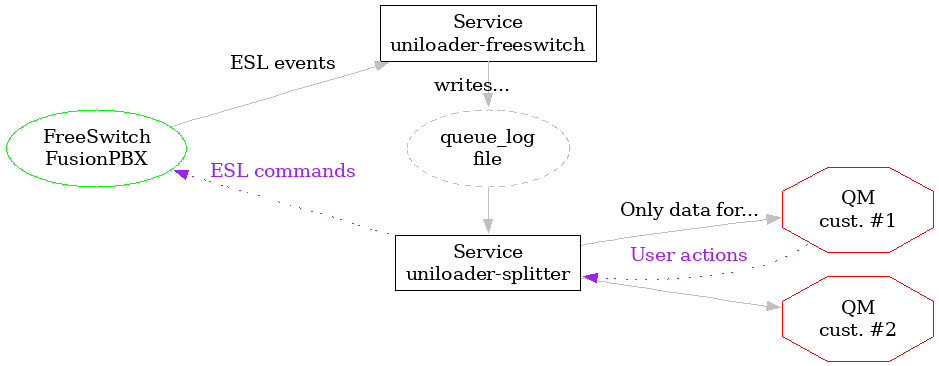
The idea is quite simple:
-
a service called
uniloader-freeswitchgathers data from the PBX, rewrites it so that it is easier to understand and dumps it to an events file called queue_log. It also takes care of applying any request from the QM GUI - for example an agent joining a queue or setting an outcome for specific call. -
a second service called
uniloader-splitterforwards queue_log data to to the correct QMLive instances, and takes care of executing on the PBX any action that users require though the QueueMetrics GUI - either directly or throughuniloader-freeswitch -
a third (optional) service called
audiovaultallows secure access to call recordings that will be available through the QM interface.
All of these services rely on the same Uniloader executable.
Terminology
-
QueueMetrics Live is the SaaS offering for QueueMetrics. It runs multiple separate instances, one for each tenant.
-
Uniloader is a kind of Swiss army knife that lets you upload data, verify accesses and configuration and in general work with a QueueMetrics instance.
-
AudioVault is a feature of Uniloader that allows QM to access remote audio files
-
Access to the Operator Portal, or
-
An API KEY to generate and manage QueueMetrics Live instances without going through Loway.
How FusionPBX is configured
For running QueueMetrics Live, you need to have a multi-tenant FusionPBX system, where each tenant runs their own sub-domain. This guide presumes that you already have a working FusionPBX system.
QueueMetrics works on data generated by the mod_callcenter module in FreeSwitch. It can be configured in the FusionPBX GUI under "Apps" → "Call centers".
First, you need to have one or more queues defined:
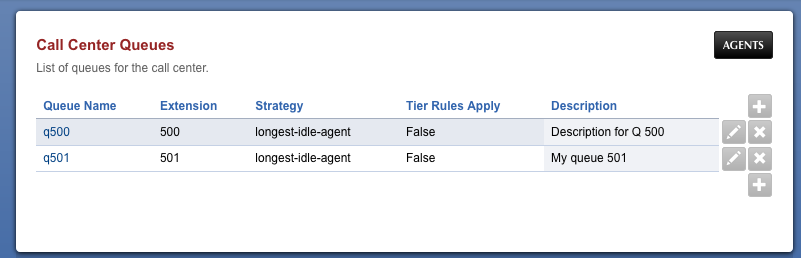
To create them, you need to set a name, an extension to reach it on, and optionally a set of agents that are "known members" of that queue, in the Tiers section:
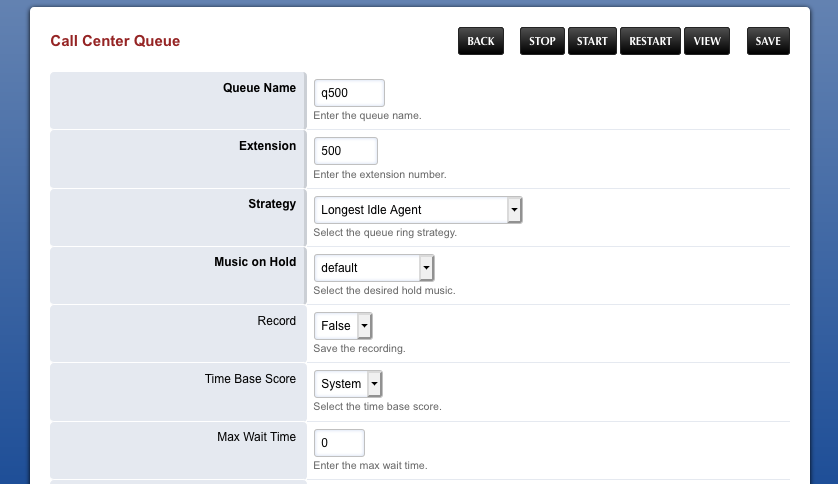
When done, make sure you click on Refresh so that the new configuration is started.
By clicking on the top-right "Agents" button, on the "Queues" page, you can create agents. Agents are defined as:
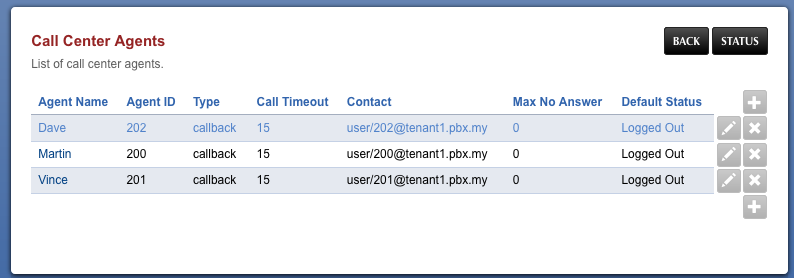
And each of them is set as:
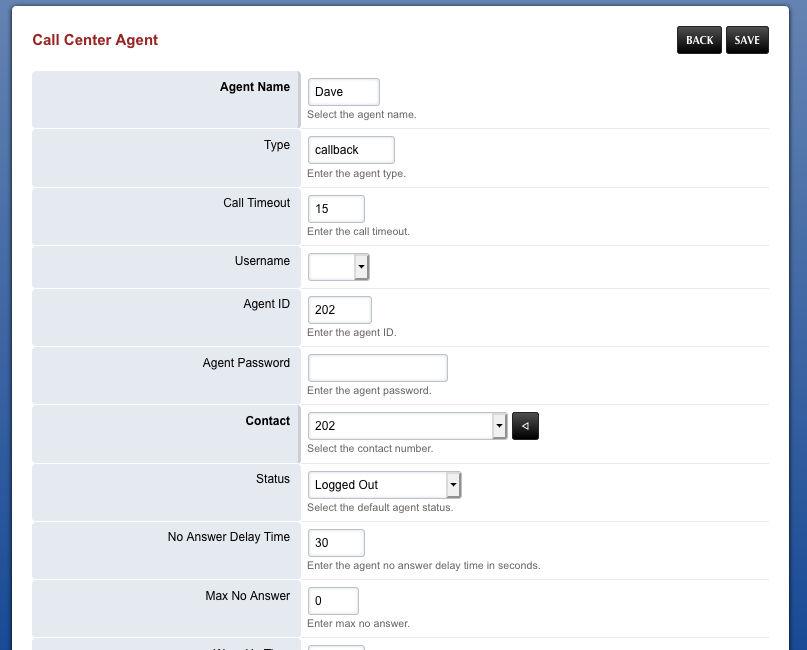
You may want to add your agents to some queues, in their Tier sections, so that they are immediately available.
| After you create new agents or queues, make sure QM knows about them - see Pre-configuring your QueueMetrics Live instance. |
Prerequisites
-
A working FusionPBX system version 5.3+, set up with multiple tenants, each of which has their own sub-domain of the format
tenant1.pbx.my. When exporting data, we will not care about the domain name, but only the subdomain, that istenant1. -
Direct access to the Postgres database that FusionPBX runs on
-
Root access to the FusionPBX server
-
A custom domain name to host your QueueMetrics Live, here
stats.pbx.my -
A QueueMetrics Live API key (optional)